|
|
 |
| |||
|
| |
|
|
|
| |||
|
| |
|
In most cases, the software will start automatically each time you logon
or restart your computer. However, if you do not see the PlanetDNS Client
green globe icon in the system tray (along the bottom of your screen against
the right corner), you will have to start the software manually.
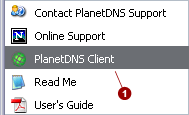
To start the software manually
Now that you have the software running, the next step is Activating Your Internet Name.
|
|
|
Copyright © 2004 PlanetDNS. All Rights Reserved. |
|

 in your system tray. The tray icon will remain
grey until the software detects that your computer is connected to the
Internet.
in your system tray. The tray icon will remain
grey until the software detects that your computer is connected to the
Internet.
 .
.