 |
The final step in making
sure your Internet name is working correctly is to use the Test
feature in the software. The test feature is found in the Connection
tab of the PlanetDNS Client software.
Check your Connection Type
In order for PlanetDNS Client to be able
to determine when you are connected to the Internet, you need to specify
how you connect to the Internet.
Click
on the Connection  tab. tab.
 NOTE: If
you do not see the Connection tab, it means that the software is running
in Novice mode. To see the Connection tab, you must set the software to
Expert mode.
For details,
click here. NOTE: If
you do not see the Connection tab, it means that the software is running
in Novice mode. To see the Connection tab, you must set the software to
Expert mode.
For details,
click here.
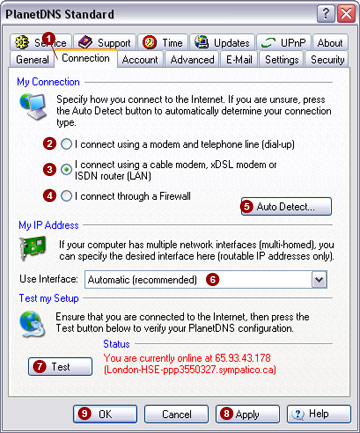 Select
the I connect using a modem and telephone
line (dial-up)  option if you have a dial-up connection
to the Internet. If you have a cable modem, DSL, or ISDN connection (broadband),
select the I connect using a cable modem,
xDSL modem or ISDN router
(LAN) option if you have a dial-up connection
to the Internet. If you have a cable modem, DSL, or ISDN connection (broadband),
select the I connect using a cable modem,
xDSL modem or ISDN router
(LAN)  option. Select the I
connect through a firewall option. Select the I
connect through a firewall  option if you are connected
to the Internet through a corporate firewall or a router device. option if you are connected
to the Internet through a corporate firewall or a router device.
If you are not sure what your connection type is, you can let the software
automatically determine it for you by pressing the Auto
Detect...  button. button. After
making your selection, click the Apply
 button. button.
Test Your Internet Name
With your connection
type set properly, test your Internet name to make sure it is pointing
to your computer.
Press
the Test  button. button. The
Status of the test should indicate
that you are online. |
|
