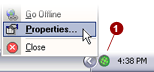
Right-mouse
click on the PlanetDNS Client icon  in the system
tray and select Properties...
in the system
tray and select Properties...
Click on the General
tab if not already selected  .
.
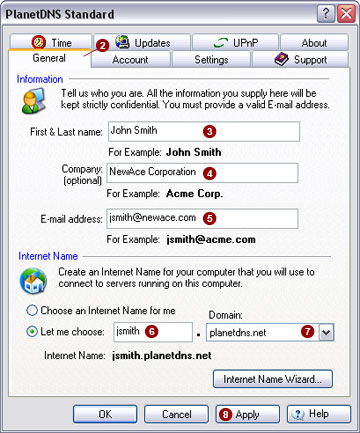
Enter your first and last name in the First
& Last Name  field.
Enter a company name in the Company
 field. If this is a personal use application and you
do not have a company name, you may leave the field blank.
field. If this is a personal use application and you
do not have a company name, you may leave the field blank.
Enter your e-mail address in the E-mail
Address  field. Please note that this must be a valid
e-mail address, as we use it to send you important registration information.
We do not use your e-mail address for any other purpose.
field. Please note that this must be a valid
e-mail address, as we use it to send you important registration information.
We do not use your e-mail address for any other purpose.
Your
Internet name will now be created. Click the Let
me choose  option
and type in a short, easy-to-remember name. The Internet name shown in
the Internet
Name field is the address you
and others will use when connecting to your computer.
option
and type in a short, easy-to-remember name. The Internet name shown in
the Internet
Name field is the address you
and others will use when connecting to your computer.
 NOTE: Internet names must be unique. If you select
an Internet name that is already in use, the PlanetDNS Client will notify
you to select an alternate name.
NOTE: Internet names must be unique. If you select
an Internet name that is already in use, the PlanetDNS Client will notify
you to select an alternate name.
By default, your Internet name will use the domain
name planetdns.net in the Domain  field. You can
select an alternative domain name by clicking on the pull-down menu.
field. You can
select an alternative domain name by clicking on the pull-down menu.
To activate the Internet name you have chosen,
select the Apply  button.
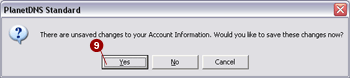
After you have selected the Apply
button, you will be prompted by a dialog "There are unsaved changes
to your Account Information. Would you like to save these changes now?"
Select the Yes
 button.
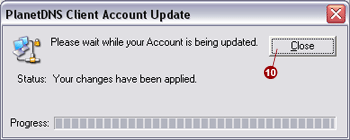
Finally, a dialog "Please wait while your
Account is being updated" will appear. Please be patient as the software
is now activating your Internet name and updating any other changes to
the software that you might have made. When finished, the Status field
will indicate that "Your changes have been applied." Select
the Close  button
to return to the General tab.
button
to return to the General tab.
Congratulations! You have successfully registered an Internet name for
your computer.

