 |
You can install PlanetDNS Client to run as a system service. This ensures
that PlanetDNS Client is automatically started each time you start up
Windows® and
before you logon to Windows®.
To install the software as a system service
Right-mouse click
on the PlanetDNS Client icon  in the system tray and select Properties... in the system tray and select Properties...
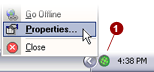
Click on the Service
 tab. tab.
 NOTE: If you do not
see the Connection tab, it means that the software is running in Novice
mode. To see the Connection tab, you must set the software to Expert mode.
For details, click here. NOTE: If you do not
see the Connection tab, it means that the software is running in Novice
mode. To see the Connection tab, you must set the software to Expert mode.
For details, click here.
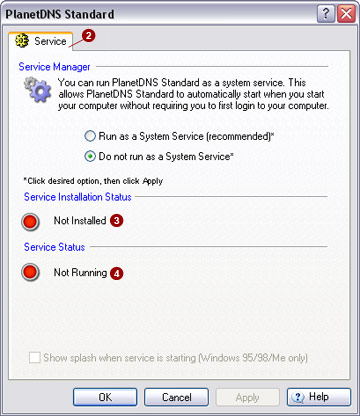
The service installation status will indicate
Not Installed  and
the Service Status will indicate Not
Running and
the Service Status will indicate Not
Running  . .
To install the service, select the Run
as a System Service (recommended)  option. option.
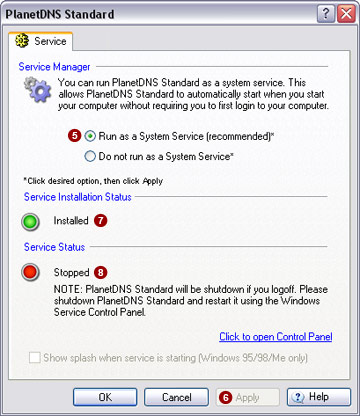
Press the Apply
 button. button.
The Service Installation Status will now change
from Not Installed (dialog above) to Installed
 (dialog below). (dialog below).
The Service Status will still indicate Stopped
 . In order for the software to start as a system service,
you will need to restart your computer. . In order for the software to start as a system service,
you will need to restart your computer.
Restart your Computer
You need to restart your computer before the software can run as a system
service.
Restart your computer.
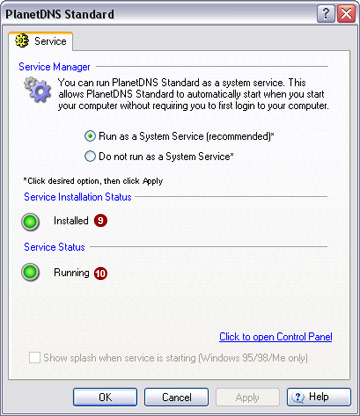
After your computer has restarted, click the Service tab to determine PlanetDNS Client's
status. If the software is running as a system service, the Service Installation
Status will indicate Installed  and the Service Status will indicate Running and the Service Status will indicate Running
 . .
|
|
