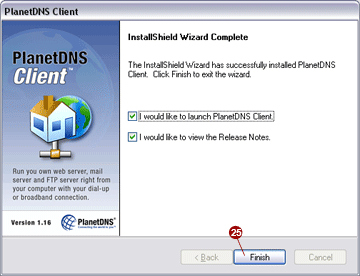
For new installations of the PlanetDNS Client software on your computer,
please follow the instructions below:
To continue, click the Next
 button.
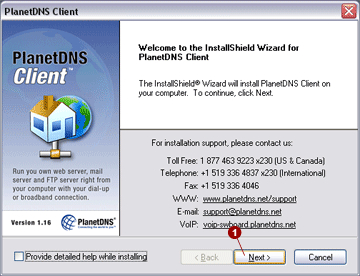
License Agreement.
In order to use this software, you must accept the license agreement by
selecting the I accept the terms of this
License Agreement  option. To continue, click the
Next
option. To continue, click the
Next
 button.
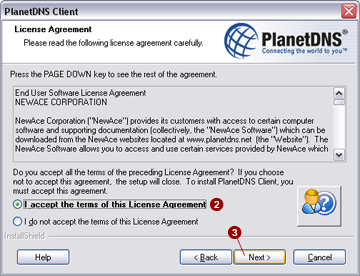
Activation.
Select No,
I'm a first-time user (recommended)  option. To continue,
click the Next button.
option. To continue,
click the Next button.
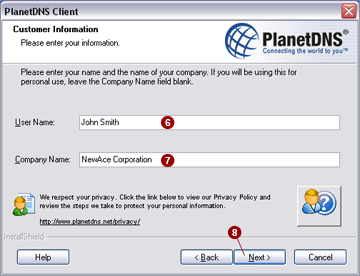
Customer Information.
Please enter your first and last name in the User Name:  field. Enter
a company name in the Company Name:
field. Enter
a company name in the Company Name:  field. If
this application is for personal use, or you do not have a company name,
you may leave this field blank. To continue, click the Next
field. If
this application is for personal use, or you do not have a company name,
you may leave this field blank. To continue, click the Next
 button.
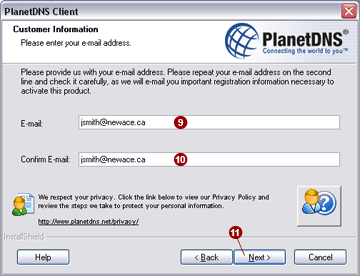
Please provide us with your e-mail address. Enter
your e-mail address into the E-mail:
 field. Type in your e-mail address again in the Confirm E-mail:
  field.
Please note that this e-mail address must be valid, as we will use it
to send you important registration information. To continue, click the
Next
field.
Please note that this e-mail address must be valid, as we will use it
to send you important registration information. To continue, click the
Next  button.
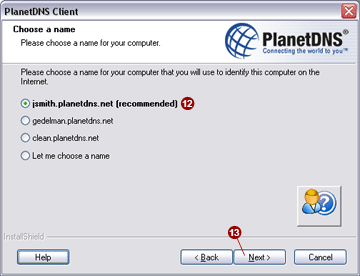
Choose a name.
Choose your Internet name for your computer. By default, the first selection
will create an Internet name using your first and last name. Select the
first option (recommended)  . To continue, click the Next
 button.
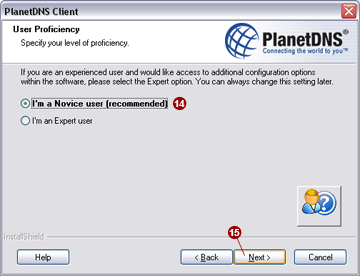
User Proficiency.
Select the I'm a Novice user (recommended)
 option. The Expert user mode provides access to additional
software configuration options. To continue, click the Next
option. The Expert user mode provides access to additional
software configuration options. To continue, click the Next
 button.
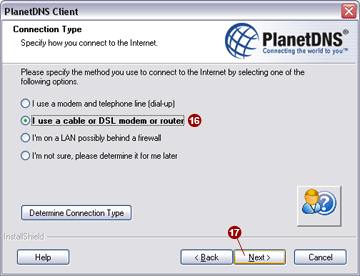
Connection Type.
Identify how you connect to the Internet. As appropriate, select the I use a cable or DSL modem or router
 option. To continue, click the Next
 button.
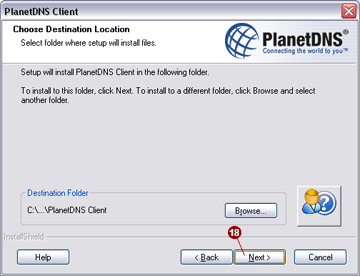
Choose Destination
Location. Select the folder where the PlanetDNS Client program
will be installed. Most users can accept the preset destination folder.
To continue, click the Next  button.
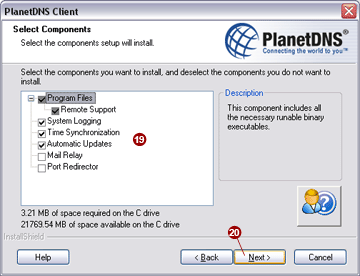
Select Components.
Choose components that you want to install. By default, all the necessary
components are pre-selected  . To continue, click the Next
  button.
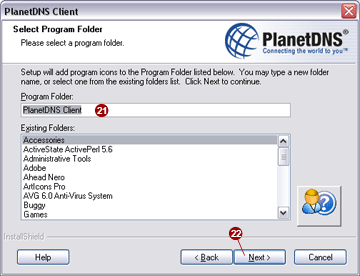
Select Program
Folder. Leave the default folder, PlanetDNS Client
 . To continue, click the Next
 button.
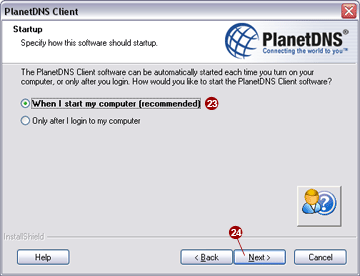
Startup.
Specify how the software should be started. Select When I start my
computer (recommended)  option. This option starts
the software before any user login requirement. To continue, click the
Next
option. This option starts
the software before any user login requirement. To continue, click the
Next  button.
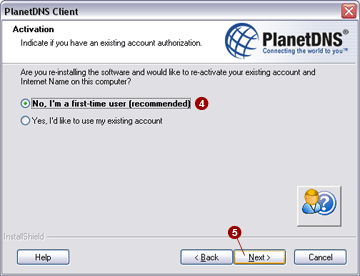
Congratulations! You have finished the installation.
Click the Finish button to exit
the installer and start PlanetDNS Client.