 |
The Account
 tab lists your PlanetDNS Client registration details. tab lists your PlanetDNS Client registration details.
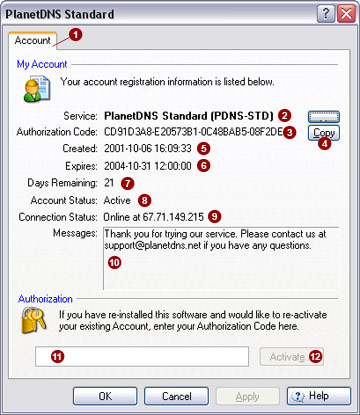
My account
The following registration information is displayed:
Service 
Displays the service level of your current subscription. The default
service level is PlanetDNS Standard (PDNS-STD).
For information on all PlanetDNS service levels, click here.
Authorization
Code 
Displays the license key for your installation. You will need this
license key to activate your PlanetDNS Client after purchase or re-installation.
Created 
Displays the date your software was first activated and registered.
Expired

Displays the date your current subscription will expire.
Days Remaining

Shows you exactly how many days you have remaining for your current
subscription. If you have not yet purchased PlanetDNS Client, it will
also count down your 30-day free trial period.
Account Status

Indicates if your account is Active
or Expired. Under normal operation,
your software should be Active.
If Expired is displayed, your
subscription period has ended and you will need to renew it to continue
using PlanetDNS Client.
 NOTE: If the Account
Status displays Expired, you can no longer use your Internet name to access
your computer over the Internet. NOTE: If the Account
Status displays Expired, you can no longer use your Internet name to access
your computer over the Internet.
Connection Status

Indicates if your Internet name is Online
or Offline. Under normal operation,
your Internet name should always be Online.
When Online is displayed, PlanetDNS
Client is able to find an active Internet connection to your computer.
As well, you can use your Internet name to access your computer over the
Internet.
NOTE: If the Connection
Status displays Offline, PlanetDNS Client is unable to find an active
Internet connection to your computer. You cannot use your Internet name
to access your computer of the Internet.
Messages 
Displays software administration notices from PlanetDNS. When a notice
is sent to you, the Client icon (green globe ) in the system tray will
flash. Click on the flashing system tray icon to open the software properties
and display the message.
NOTE: We send notices
relating to software adminstration only.
Authorization
The authorization field can be used to reactivate an expired account,
or an existing account when the software has been transferring to another
computer.
You can reactivate your existing PlanetDNS account, or an account that
has expired, by entering your Authorization
Code (displayed in field) into the blank  field. You can
use the convenient Copy feature field. You can
use the convenient Copy feature
 button to help copy the code, ready for you to paste
into place and press the Activate… button to help copy the code, ready for you to paste
into place and press the Activate…
 button. button.
Related Topics
|
|

