 |
The E-mail  tab is
used to specify how e-mail should be handled for your Internet name (domain
name). tab is
used to specify how e-mail should be handled for your Internet name (domain
name).
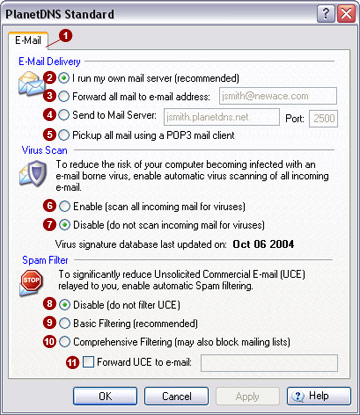
E-mail delivery
Your Internet name (domain name) allows you
to run your own e-mail server and receive e-mail for an unlimited number
of users. For example, if your chosen Internet name is jsmith.planetdns.net,
you can send e-mail to <anyuser>@jsmith.planetdns.net
and it will arrive at your mail server. Similarly, if you have your own
domain name, any mail sent to <anyuser>@yourdomain.com
will arrive at your mail server. All you need to do is ensure that your
mail server is configured to accept mail for your Internet name (domain
name) and that your server has been configured to provide a mailbox for
the user.
I
run my own mail server (recommended) 
Select this option if you want to run your own mail server. This option
will require you to install and configure a mail server on your computer
to accept e-mail for your Internet name (domain name). To run your own
mail server with PlanetDNS Client, you can use any mail server of your
choice.
Forward
all mail to e-mail address 
Select this option to enable the e-mail forwarding function, which
allows you to receive e-mail for your Internet name (domain name) without
having to run your own mail server. All e-mail for <anyuser>@jsmith.planetdns.net
(or <anyuser@yourdomain.com), for example, will be sent to the
e-mail address you specify. You can specify your e-mail address provided
to you by your Internet service provider, your hotmail account, etc.
Send
to mail server 
Select this option if you want to enable the e-mail port redirection
function, in case your Internet service provider has blocked Internet
access to the standard SMTP mail port (Port 25) of your computer. Port: Enter the number of the port you
want to redirect mail to. Also, you will need to ensure your mail server
is configured to monitor incoming mail on the same port that you specify
here.
Pick
up all mail using a POP3 mail client 
Select this option if you want the PlanetDNS mail relaying servers
to send your e-mail for your Internet name directly to your existing e-mail
program, such as Microsoft®
Outlook, Outlook Express, etc.
You will need to configure your e-mail account to the following settings:
Incoming mail (POP3) : mail.planetdns.net
Outgoing mail (SMTP): <use the
address provided by your Internet service provider>
Account Name : <user>@<your
Internet name> (for example: user@jsmith.planetdns.net)
Password : <use your PlanetDNS
authorization code>
Your PlanetDNS authorization code can be obtained from PlanetDNS Client's
Account Tab. If you are using an e-mail program that does not support
secure password authentication (SPA) or APOP, please use only the first
17 characters of the authorization code.
If you want to receive all e-mail for your Internet name (i.e., for
all users), specify @<your Internet
Name> instead of <user>@<your
Internet name> for the account name.
 NOTE: E-mail not picked
up within ten days of receipt into your inbox is returned to the sender
indicating that the message could not be delivered. Check your mail regularly
if you select this option. NOTE: E-mail not picked
up within ten days of receipt into your inbox is returned to the sender
indicating that the message could not be delivered. Check your mail regularly
if you select this option.
Virus scan
All e-mail for your Internet name (domain
name) can be automatically checked for viruses.
Enable
(scan all incoming mail for viruses) 
Select this option to enable automatic virus scanning for your Internet
Name (or domain names). Please note that this does NOT
guarantee that all viruses will be successfully intercepted, so you should
continue to perform regular backups of your important files and documents
on your computer, as appropriate.
Updates to our virus signature database are being provided by several
industry leading virus detection firms on a real-time basis. However,
as updates are provided only after the discovery of a new virus, it means
that at least a small percentage of the e-mail population has already
been exposed, this could include you, so backup important files and documents
often.
Disable
(do not scan incoming mail for viruses) 
Users that already have their own virus scanners on their computers
should select this option.
Spam filter
You can substantially reduce the spam e-mail
sent to your Internet name (domain name) by enabling the basic filtering
or comprehensive filtering option.
Basic
Filtering (recommend) 
Select this option if you want to ensure that clearly identified spam
e-mail is discarded. A small percentage of spam might still be forwarded
to your e-mail address.
Comprehensive
Filtering 
Select this option for extensive spam filtering. This will eliminate
all spam sent to your e-mail address.
Forward UCE to e-mail 
Check this option and supply an e-mail address, if you want to receive
all spam e-mail messages. The messages will be flagged as spam.
All e-mail sent to your Internet name (domain name) that is identified
as SPAM will be discarded unless this option is checked and an e-mail
address is provided. Please note that the e-mail provided MUST be within
the same domain as your Internet name (for example, spam@<yourname>.planetdns.net
or spam@yourdomain.com)
Disable
(Do not filter UCE) 
Select this option if you do not want to have our servers check your
mail for spam.
Mail store and forward
The PlanetDNS service includes integrated
mail store-and-forward feature, ensuring that no mail is lost in the event
that your mail server is down or unable to accept e-mail. PlanetDNS' mail
store-and-forward servers automatically send any accumulated e-mail to
your server as soon as it is back online.
The mail store-and-forward feature is provided
within the limits of a maximum daily volume quota, which is determined
by the service level of your subscription. Quotas are reset each day at
12 a.m. ET. You will be notified by e-mail, and your incoming messages
will be returned to the sender, if you exceed your allotted daily quota.
You can check your daily quota allocation and current usage by clicking
the Mail Relay tab in PlanetDNS Client
properties.
NOTE:
Enabling either the virus scanning or spam filtering features will cause
you to use up your mail store-and-forward allocation more quickly, since
ALL e-mail for your Internet name (domain name) will then be relayed through
our servers. If you do not enable any of these features, e-mail will only
be relayed through our servers when your mail server is offline.
Related Topics
|
|

