 |
The Connection  tab
identifies how you connect to the Internet and allows you to test your
Internet name (domain name) to make sure it is accessible. tab
identifies how you connect to the Internet and allows you to test your
Internet name (domain name) to make sure it is accessible.
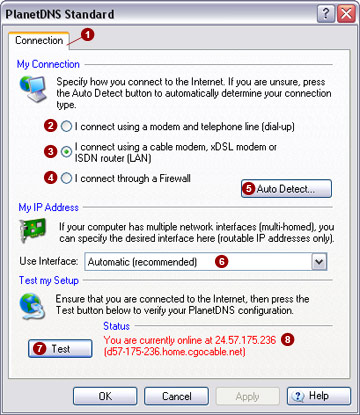
My connection
Specify how you connect to the Internet. It
is crucial that you specify the correct connection type, so your Internet
name can be properly linked to your computer's IP address.
I
connect using a modem and telephone line (dial-up) 
Select this option if you use a standard (28.8K, 33.6K, or 56K) modem
and a telephone line to connect to the Internet. You should also select
this option if you use an ISDN terminal adapter, a cable-modem that uses
dial-up networking to connect to the Internet, or if you use a satellite
or wireless service that requires you to use a modem.
I
connect using a cable modem, xDSL modem or ISDN router (LAN) 
Select this option if you are using a high-speed dedicated connection
to the Internet. This includes all forms of DSL (ADSL, DDSL, etc.,), cable,
or the use of a LAN connection. Most users will have this connection type.
I
connect through a firewall 
Select this option if you are behind a firewall, or router that restricts
access to the Internet. You will need to select this option, if the PlanetDNS
Client icon in the system tray does not turn green shortly after you connect
to the Internet.
Auto
Detect 
If you are not sure of your connection type, press the Auto
Detect button to enable PlanetDNS Client to automatically detect
it.
My IP address
If your computer is equipped with more than
one network interface (network card), you can select the interface you
prefer to use when sending updates to PlanetDNS service providers. A routable
IP address is assigned to your Internet name.
From the User Interface pull-down menu, select
the interface you want to use  . If you are not sure, leave
the default setting, Automatic (recommended)
. . If you are not sure, leave
the default setting, Automatic (recommended)
.
Test your setup
Have your settings and Internet name link
checked by an active PlanetDNS service provider. The test will also determine
your current IP address.
Press the Test  button. button.
The Status
 of the test should indicate that you are online and your
Internet service provider's IP address should be shown. of the test should indicate that you are online and your
Internet service provider's IP address should be shown.
If your Internet service provider’s IP address
is shown, all your settings are correct. You are now able to make your
chosen Internet name available to your friends, family, or even search
engines, such as Yahoo! and Google.
Related Topics
|
|


