 |
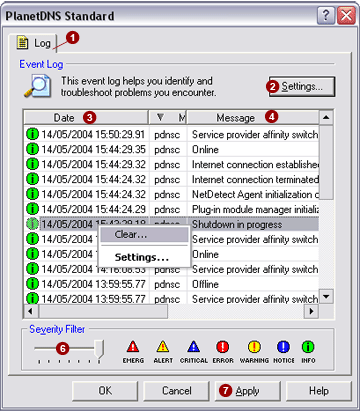
The Log  tab provides
for a system logging service, where the status of other module extensions
is recorded. tab provides
for a system logging service, where the status of other module extensions
is recorded.
Messages
Logged messages are reported in reverse chronological
order. The date the messages was generated is listed first, followed by
the name of the module that generated the message and the status message.
The severity of the message is indicated by an icon. A message can have
one of the following severity levels:
|

|
Emergency
The system is unusable. This highest-level warning message is reported
by the module manager when it can no longer communicate with some or all
of the installed modules that it manages. A program (or possibly a system)
restart is required.
|
|

|
Alert
A condition exists that requires immediate attention.
|
|

|
Critical
A critical condition, such as a system module failure, exists and requires
immediate attention.
|
|

|
Error
A system operation or communications error has occurred and requires immediate
attention.
|
|

|
Warning
A temporary (non-permanent) failure that prevents the current operation
from completing its task has occurred. Take steps to remedy the problem,
then retry the operation.
|
|

|
Notice
A temporary (non-permanent) failure, such as a failed Internet connection,
has occurred and interrupted normal operations.
|
|

|
Information
This lowest-level message is strictly informational. No action is necessary.
|
Severity filter
By adjusting the slide control  , you can set the severity filter to display only a select
type of messages. When
the control is set to the far right, all message types are displayed.
When the control is set to the far left, only Emergency messages are displayed. , you can set the severity filter to display only a select
type of messages. When
the control is set to the far right, all message types are displayed.
When the control is set to the far left, only Emergency messages are displayed.
Clearing log entries
You can clear the log
entries by clicking the right-mouse button while your mouse pointer is
positioned over the log messages window. A popup menu will be displayed,
select the Clear... option, then
select Yes to confirm that you
want to clear the entire log.
After making your changes,
select the Apply  button. button.
Changing logging options
You can change the logging options by pressing
the Settings...  button. The following dialog will appear: button. The following dialog will appear:

Never
Select this option if you never want to remove any of the log entries.
Entries
older than
Select this option to specify how long the log should retain messages.
Use the slide to select the preferred number of days.
Popup
Notification Filter
You can be visually alerted when a message of a particular severity
is recorded in the log. This allows you to be made aware of certain messages
without the need to periodically check the log.
To minimize the number of user alerts that are generated, set the slide
control to alert only on Warning
and more severe log messages.
When you receive an alert through a notification pop-up balloon, double-click
the program icon in the system notification area (also frequently called
the system tray) to automatically bring you to the log window.
|
|

