 |
The Updates  tab can
be used to select the way you want PlanetDNS Client to notify you when
software updates become available. tab can
be used to select the way you want PlanetDNS Client to notify you when
software updates become available.
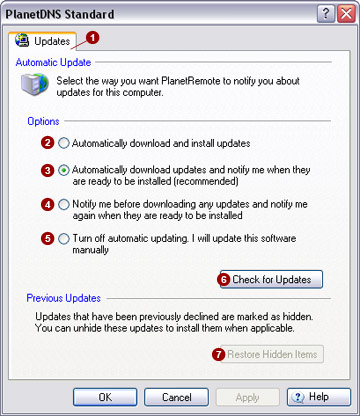
Automatic Updates
Enabling automatic updates ensures that this
software and its components (plug-in extensions and help files) remain
up-to-date with the latest versions available from the PlanetDNS website.
Select the option that best meets your needs:
Automatically
download and install updates 
Through this option, PlanetDNS Client recognizes when you are online
and uses your Internet connection to search for downloads from the PlanetDNS
website. A message will appear in the notification area of your system
task bar when new updates have been successfully downloaded and installed.
Automatically
download updates and notify me when they are ready to be installed

With this option selected, PlanetDNS Client recognizes when you are
online and uses your Internet connection to search for downloads from
the PlanetDNS website. A message will appear in the notification area
of your system task bar when new updates have been downloaded and are
ready to be installed. Click the icon, or message to view the updates.
If you don't want to install a selected update, click to clear the check
box next to it. Critical updates (i.e. those that are integral to the
efficient operation to the software) cannot be declined. Click Install
to install the selected updates with checked boxes next to them.
Notify
me before downloading any updates and notify me again when they are ready
to be installed 
By selecting this option, PlanetDNS Client recognizes when you are
online and uses your Internet connection to search for downloads from
the PlanetDNS website. A message will appear in the notification area
of your system task bar when new updates are available to be downloaded.
Click the icon or message to view the updates. If you don't want to download
an update, click to clear the check box next to it. Critical updates (i.e.
those that are integral to the efficient operation to the software) cannot
be declined. Click Download to
download the selected updates.
Turn
off automatic updating. I will update this software manually 
With automatic updating disabled, PlanetDNS Client will not use your
Internet connection to periodically check for new updates. You will have
to manually check to see if new updates are available on the PlanetDNS
website by pressing the Check for Updates
 button. button.
 NOTE: You can view a
record of installed updates by selecting the Log tab. NOTE: You can view a
record of installed updates by selecting the Log tab.
Restore hidden items
Updates that you have declined to install
or download are hidden. You can restore these updates to view and install
them by pressing the Restore Hidden Items
 button. button.
|
|

