 |
PlanetRemote needs to be installed only on the computer that you want to
control remotely. The desktop and files of the
can be accessed from
anywhere in the world, using another
that has a JAVA-enabled web browser, such as Internet Explorer, Opera,
Netscape, Mozilla, etc., and is connected to the Internet.
 NOTE: If
you use a router or firewall, it will need to be configured before you
can control the PlanetRemote-enabled computer remotely. For further instructions,
see Setting up your router to work with PlanetRemote. NOTE: If
you use a router or firewall, it will need to be configured before you
can control the PlanetRemote-enabled computer remotely. For further instructions,
see Setting up your router to work with PlanetRemote.
To Control your Computer using a Web Browser
Start the web browser.
Enter the PlanetRemote-enabled computer's Internet
name (domain name) and the port it is listening on by typing in the address
bar of your web browser http://yourname.planetremote.com:6600
(Plus Edition) or http://your_IP_address_here:6600
(Standard Edition).
For example, if you had chosen jsmith.planetremote.com
as your Internet name in PlanetDNS Client, you would type in the address
bar of the web browser: http://jsmith.planetremote.com:6600

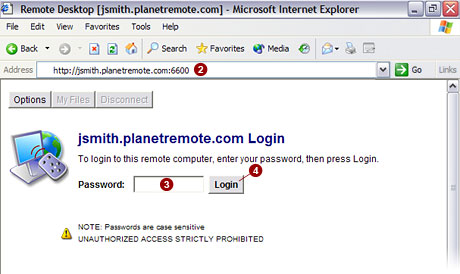
Enter your password in the Password
 field. field.
NOTE: Passwords are
case sensitive. Make sure you enter your password using upper and low
cases as it was created.
Press the Login
 button to login to the PlanetRemote-enabled computer. button to login to the PlanetRemote-enabled computer.
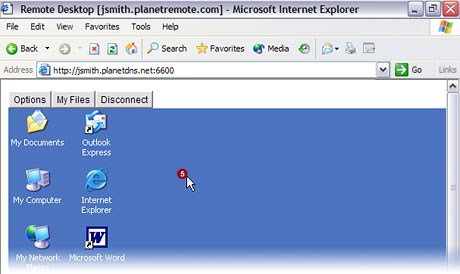
After you have pressed the login button, it might
take several seconds for the PlanetRemote-enabled computer's desktop to
initialize on the local computer. Once initialized, you will have access
to the PlanetRemote-enabled computer's
desktop  . .
Related Topics
|
|


