|
With PlanetRemote, you can select how you want the
to respond when a remote control connection is being established. Notification
options are located in the Advanced
 tab of the PlanetRemote tab of the PlanetRemote
 NOTE:
To locate the Advanced tab, Right-mouse
click on the PlanetRemote icon
in the system tray (along the bottom of your screen against the right
corner) and select Properties... NOTE:
To locate the Advanced tab, Right-mouse
click on the PlanetRemote icon
in the system tray (along the bottom of your screen against the right
corner) and select Properties...
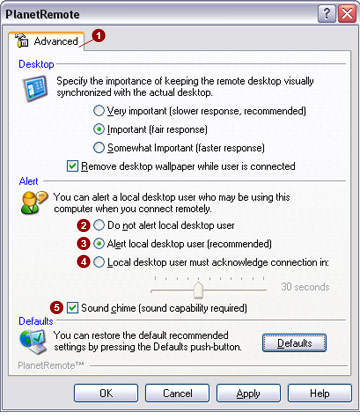
Do not alert
local desktop user 
With this option selected, no message will appear on the PlanetRemote-enabled
computer when a remote control connection is established. The PlanetRemote
icon in the system tray will not change color and remain green during
entire remote control connection.
Alert local
desktop user (recommended) 
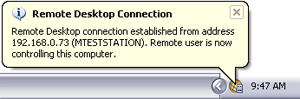
By selecting this option, the PlanetRemote system tray icon on the PlanetRemote-enabled
computer will change from green to orange and display an XP-style balloon
message window (shown below) indicating that a remote connection has been
established. The message balloon will automatically disappear after a
short period of time, although the icon will remain orange until the remote
connection has been discontinued.
Local Desktop
user must acknowledge connection in: 
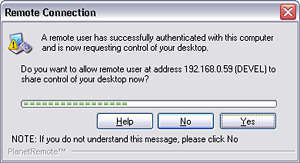
This option requires the local computer user on the PlanetRemote-enabled
computer to acknowledge the remote connection before it can be established
completely. The local computer user will be prompted with a dialog that
identifies the address of the connecting party and requests permission
to complete the remote connection. To allow the remote connection, the
local user must click the Yes
button within 30 seconds of the notification dialog appearing. If the
local user selects the No button,
or does respond to the request, remote access to the PlanetRemote-enabled
computer will be denied.
NOTE:
For security, all remote control connections made to the PlanetRemote-enabled
computer are logged, regardless of the notification setting applied. For
further information, see the Remote Log tab. To
locate the Remote Log tab, Right-mouse
click on the PlanetRemote icon
in the system tray (along the bottom of your screen against the right
corner) and select Properties...
|


