 |
The Files  tab allows
you to enable file transfer to and from the
over the Internet or LAN. tab allows
you to enable file transfer to and from the
over the Internet or LAN.
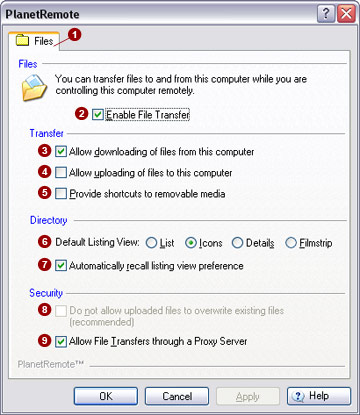
Files
Transfer files between the local and PlanetRemote-enabled computer by
clicking the My Files button shown
at the top of the remote control window. The user screen uses a familiar,
Explorer-style layout that is presented to the user from within the web
browser. You will have access to all local, removable and network drives,
as if you were actually sitting in front of the computer.
Transfer
Allow downloading
of files from this computer 
This option will be enabled automatically when you select the Enable File Transfer  option.
This option must be selected if you want to be able to download files
from the PlanetRemote-enabled computer to the local computer. option.
This option must be selected if you want to be able to download files
from the PlanetRemote-enabled computer to the local computer.
Allow uploading
of files to this computer 
Click this option to also allow uploading of files from the local computer
to the PlanetRemote-enabled computer.
This enables the Upload button
in the remote control window, so you can send files to the PlanetRemote-enabled
computer. Conversely, when this option is disabled, the Upload
button will not be shown, preventing any uploading of files to the PlanetRemote-enabled
computer.
Provide shortcuts
to removable media 
Click this option to allow access to both removable and network drives
from within the Explorer-style window.
Directory
Default Listing
View 
The directory of files can be presented in one of several familiar
Explorer-style formats, including List,
Icons, Details
and Filmstrip options.
Automatically
recall listing view preference 
Click this option to preserve your preferred view format for each directory
listing you access (this features uses Cookies). Your preferred view format
will be displayed every time you revisit the directory listing.
Security
Do not allow
uploaded files to overwrite existing files (recommended) 
Click this option to ensure that you do not accidentally overwrite
and remove important files on the PlanetRemote-enabled computer during
remote access sessions. This function will be enabled automatically if
the Allow uploading of files to this
computer option is selected.
Allow File Transfers
through a Proxy Server 
Click this option if you are using an Internet service provider that
makes extensive use of transparent proxies, which can sometimes prevent
you from accessing your files from the PlanetRemote-enabled computer.
Related
Topics
|
|


