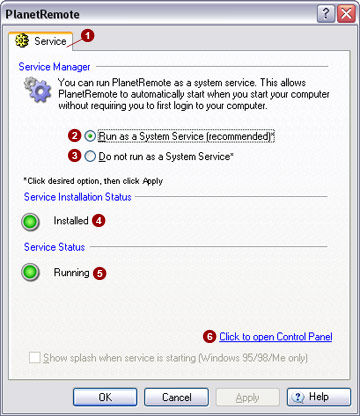
The Service tab allows you to configure PlanetRemote to run as a system service. As a system service, PlanetRemote is automatically started each time you start Windows® and before you log on.


Service Manager

  • Run as a system service (recommended)
    With this option selected, PlanetRemote will automatically start with your computer without requiring you to first login to Windows®.
     

  • Do not run as a system service
    Select this option if you do not want to run PlanetRemote as a system service. In this mode, PlanetRemote will not start until after you have logged onto your computer.

Service Installation Status

The current status of your software is displayed.


  • Installed
    Indicates that the service has been installed (indicated with a green light)
     

  • Not Installed
    Indicates that the service has not been installed (indicated by a red light)

Service Status

The current status of your service is displayed.


  • Running
    Indicates that the service is running (indicated with a green light).

  • Not Running
    Indicates that the service is currently not running. This is either because you have chosen not to install it as a system service or because this is the first time you installed the service. You need to re-boot the computer before it indicates that it is running.

NOTE: If you have just installed PlanetRemote for the first time, the service installation and status lights will show that the software has been installed, but is not running. You will need to re-boot your computer first before the software will run as a system service.


When installing PlanetRemote as a service under Windows® 95, 98 or Me, the service will start automatically. However, you will not be able to use the NET START and NET STOP commands from the DOS prompt. This is due to a limitation of Windows® 95, 98 and Me.


Related Topics

How to install the software as a system service