 |
PlanetRemote Viewer is a compact application that can be used as an
alternative to a web browser to control the .
The viewer application can be easily downloaded from the
PlanetDNS website and requires no special installation. Once downloaded
on your desktop, you can simply click on the PlanetRemote viewer icon
to start the application.
 NOTE: If
you use a router or firewall, it will need to be configured before you
can control the PlanetRemote-enabled computer. For further instructions,
see Setting up your router to work with PlanetRemote. NOTE: If
you use a router or firewall, it will need to be configured before you
can control the PlanetRemote-enabled computer. For further instructions,
see Setting up your router to work with PlanetRemote.
To Control your Computer using PlanetRemote Viewer
From the PlanetDNS website, download
PlanetRemote Viewer onto the
that you are using to take control of the PlanetRemote-enabled computer
and save it to the desktop.
Click on the PlanetRemote
Viewer icon  on the local computer's desktop to start
the application. on the local computer's desktop to start
the application.

Select the Connect
 tab. tab.
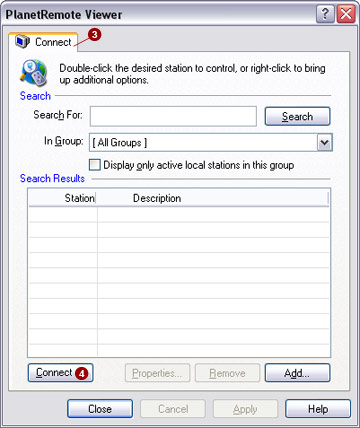
Press the Connect
 button to bring up the Connect
dialog (shown below). button to bring up the Connect
dialog (shown below).
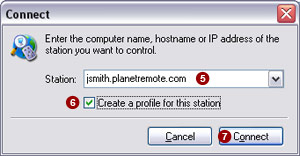
In the Station
 field, enter the computer name, hostname, or IP address
of the PlanetRemote-enabled computer you want to control. If you have
PlanetDNS Client installed (Included in Plus Edition of PlanetRemote),
enter the Internet name (domain name) you have chosen for the PlanetRemote-enabled
computer. field, enter the computer name, hostname, or IP address
of the PlanetRemote-enabled computer you want to control. If you have
PlanetDNS Client installed (Included in Plus Edition of PlanetRemote),
enter the Internet name (domain name) you have chosen for the PlanetRemote-enabled
computer.
For example, if you had chosen jsmith.planetremote.com
as your Internet name in PlanetDNS Client, you would enter jsmith.planetremote.com
in the Station
field.
If you intend to revisit the PlanetRemote-enabled
computer in the future, you can add its profile to your list of stations
by clicking the Create a profile for
this station  check box. check box.
Press the Connect
 button. The Enter Password
dialog (shown below) will appear. button. The Enter Password
dialog (shown below) will appear.
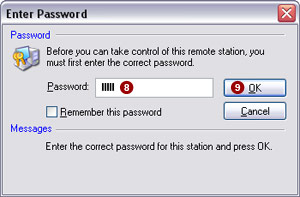
Enter in the Password
 field the password of the PlanetRemote-enabled computer
you want to control remotely. field the password of the PlanetRemote-enabled computer
you want to control remotely.
Press the OK
 button to connect to the PlanetRemote-enabled remote
computer. button to connect to the PlanetRemote-enabled remote
computer.
-
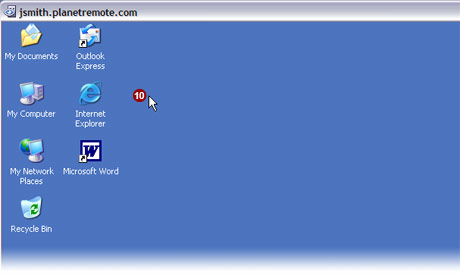
After you have pressed the Connect
button, it might take several seconds for the PlanetRemote-enabled computer's
desktop to initialize on the local computer. Once initialized, you will
have access to the PlanetRemote-enabled
computer's desktop
 . .
Related
Topics
|
|

