 |
|
 |
| |||
|
| |
|
|
|
| |||
|
| |
|
Listed are answers to the most frequently asked questions about PlanetRemote.
General
Controlling Your Computer Remotely
File Transfer
Security
Program Use
Routers and Firewalls
License and Registration
Troubleshooting
PlanetRemote is a unique software application that enables you to take control of your computer from a different station and location. It allows you to work remotely from another location to access your computer's desktop and files as if you were sitting right in front of it! You can take control of your computer from any other computer connected to your local network, by using either a web browser or PlanetRemote Viewer (included with this product).
And the best part about PlanetRemote? You only need to install this software on the one computer you want to control. The PlanetRemote-enabled computer will automatically download and run the necessary components on the local computer you are connecting from. As a result, you can take control of your computer from wherever you have access to a web browser (e.g., Internet cafe, library, etc.). Using PlanetRemote Plus Edition's PlanetDNS Client capabilities, you'll have an Internet name that is constantly linked to your dynamic IP address.
What is the difference between the Standard and Plus editions? The Standard Edition is a full-feature version of PlanetRemote and is ideal if you want to take control of your computer over the Internet or local area network using its IP address. In general, the Standard Edition is recommended for a users who want to gain remote access to a computer that already uses an Internet name and already have a dynamic DNS solution installed. The Standard Edition can also be used to take control of remote computers from within a local area network.
The Plus Edition is a full-feature version of PlanetRemote that is ideal if you want to take control of your computer over the Internet and local area network (LAN) using an easy-to-remember Internet name. It includes our popular and easy-to-use PlanetDNS Client software (our dynamic DNS solution). With PlanetDNS Client, you can give your computer an Internet name that can be accessed over the Internet. We recommend the Plus Edition if your computer connects to the Internet via a Cable, DSL, LAN, or wireless connection.
Use the Standard Edition if:
Use the Plus Edition if:
I already have a third-party dynamic DNS solution on my computer. Can I still use your program? Yes. PlanetRemote is compatible with all dynamic DNS software. You will need to install PlanetRemote Standard Edition only on the computer you want to control remotely. You will be able to take control of your computer over the Internet or LAN with the name you have already assigned to your computer.
Do I need to install PlanetRemote on both the remote and local computer? No. One of the main benefits of PlanetRemote is that it only needs to be installed on the computer that you want to control from a remote location. Once installed, you can use any JAVA-enabled web browser, such as Internet Explorer, Opera, Netscape, Mozilla, etc., to access and control your PlanetRemote-enabled computer over the Internet from any other location in the world.
For information on making your first remote control connection, we recommend that you refer to our Getting Started section of this Help file.
How do I login and control the PlanetRemote-enabled computer? You can use any computer to take control of the PlanetRemote-enabled computer from any location with an Internet connection, by using either a web browser or PlanetRemote Viewer (application included with PlanetRemote).
Using a Web Browser You can use a standard JAVA-enabled web browser on the local
computer,
such as Internet Explorer, Opera, Netscape, Mozilla, etc., to take control
of your PlanetRemote-enabled computer from anywhere in the world where
an Internet connection is available. See Controlling your computer using a web browser for more details.
Using PlanetRemote Viewer PlanetRemote Viewer is a special application that you can readily download
from the PlanetDNS website. The software runs on the local computer that
you are going to use to take control of the PlanetRemote-enabled computer.
It is a small program that is downloaded to the local computer, but is
not installed. Once downloaded, click on the PlanetRemote Viewer icon
on the local computer's desktop to open the viewer and specify the name
of the PlanetRemote-enabled computer you want to remote control. See Controlling your computer using PlanetRemove Viewer for more details.
How can I control the PlanetRemote-enabled computer using my web browser? In the address bar of your web browser, enter the Internet name of the PlanetRemote-enabled computer and the port it runs on, using the following format: http://yourname.planetremote.com:6600 (Plus Edition) or http://your_IP_address:6600 (Standard Edition).
See Controlling your computer using a web browser for more details.
What password do I need to enter to control my computer remotely? Each time you login, you'll need to use the password you created when you installed PlanetRemote on your computer. If you no longer remember your password, or you would like to change it, click here.
See Setting your remote login password for more details.
How can I control my computer using PlanetRemote Viewer? PlanetRemote Viewer is a small application, which can be used instead of a web browser to connect and control your PlanetRemote-enabled computer remotely.
See Controlling your computer using PlanetRemote Viewer for more details.
My computer has a dynamic IP address. Can I still control it remotely over the Internet? Yes. PlanetRemote Plus Edition includes our PlanetDNS Client software, which you can use to assign an easy-to-remember Internet name to your computer. PlanetDNS Client ensures that your Internet name remains constantly linked to your computer's dynamic IP address, so your computer can always be located on the Internet.
How do I remote control multiple computers that are behind my router? Install the PlanetRemote Plus Edition
on all of the network computers that are connected to your router and
assign each a unique Internet name. You can then access any of the PlanetRemote-enabled computers
connected to your router individually over the Internet or within your
network by specifying their own Internet name. See How to control multiple computers on a LAN behind a router for more details.
How do I enable file transfer? You will not be able to transfer files to and from the PlanetRemote-enabled
computer, if the software's file transfer function has not been enabled.
To enable file transfer, open PlanetRemote Properties
by clicking on the PlanetRemote icon in your in the system tray
(along the bottom of your screen against the right corner). Select the Files tab and check the Enable
File Transfer option. Press
the Apply button to save the change. See Enabling File Transfer for more details.
How do I download files from the PlanetRemote-enabled computer? First, login to the PlanetRemote-enabled computer. Then, press the My Files button located at the top left corner of your browser window. Right-mouse click on the file that you wish to download from the PlanetRemote-enabled computer. From the menu, select the Save Target As... option. Specify where on the controlling computer you want to save the target file, by selecting the location using the pulldown menu. By default, the downloaded file will be saved onto the desktop of your controlling computer. Click the Save button to save the downloaded file to your controlling computer.
See Downloading files from the remote computer for more details.
How do I upload files to the PlanetRemote-enabled computer? First, login to the PlanetRemote-enabled computer. Then, press the My Files button located at the top left corner of your browser window. Browse to the directory on the PlanetRemote-enabled computer where you want to upload the file to and select the Upload button. Next, select the Browse... button. Using the pulldown menu, choose the directory where your file is located. Click on the file you wish to upload to the PlanetRemote-enabled computer's directory. Click the Open button. The file you have chosen to upload will appear in the File: field. Press the Upload button to upload the file.
See Uploading files to the remote computer for more details.
Are all remote access sessions and connections logged? Yes. As a security feature, all remote access connections, successful and unsuccessful, are logged. The log records the remote computer's host IP address, and the connection date and time.
See Remote Control Access Log for more details.
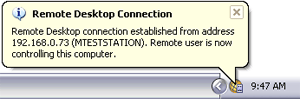
How will I know if the PlanetRemote-enable computer is being accessed from a remote location? When a remote access connection has been established,
a notification in a Windows XP-style pop-up balloon will appear above
the PlanetRemote icon in the system tray (along the bottom of your screen
against the right corner) of the PlanetRemote-enabled computer's
desktop. The
notification will report the IP address and host name of the remote computer
that has established the connection. In addition, the icon, which is typically
green, will
change to orange for the entire duration of the remote connection. Only
after all remote control connections have been disconnected with the orange
See Setting Notification Options for more details.
How do I change the password that controls access to my PlanetRemote-enabled computer? The password that you will need to provide each time you want to access your computer remotely is set in the VNC tab of PlanetRemote Properties. To change it, click here.
See Setting your Remote Login Password for more details.
How can I send a Ctrl+Alt+Del command to the PlanetRemote-enabled computer? When logged into the PlanetRemote-enabled computer using a web browser, press the Options button and select the Send Ctrl+Alt+Del option from the menu.
How can I change the color resolution used to show the PlanetRemote-enabled computer's desktop? The color resolution can be changed at any time while you are controlling the PlanetRemote-enabled computer by adjusting the connection speed. Press the Options button and highlight the My Connection -> option form the menu.
The default (recommended) setting, uses 256 (8-bit) color with high compression and is ideal for Cable, DSL and dial-up connections.
See Setting your connection speed for more details.
Press the Ctrl+Esc key to return to your regular desktop.
Why do I need to configure my router and firewall? By default, all routers and firewalls are configured to block all incoming connections to your computer from the Internet. The setting would prevent use of PlanetRemote, which monitors and provides remote user access to your computer through TCP ports 6600 and 6700 on your router and firewall. The solution is to selectively open the router and firewall ports used by PlanetRemote.
Routers Your router needs to be configured to allow remote access to the PlanetRemote-enabled computer through TCP ports 6600 and 6700. The process of establishing the appropriate connections between the Internet and your PlanetRemote-enabled computer through your router is typically referred to as Port Forwarding (Linksys), or Virtual Servers (D-Link) and may be completed by using your router's control panel.
See Setting Up Your Router to Work with PlanetRemote for more details.
Firewalls Your firewall needs to be configured to allow remote access to the PlanetRemote-enabled computer through TCP ports 6600 and 6700.
See Setting Up Your Router to Work with PlanetRemote for more details.
What ports do I need to open on my router and firewall? PlanetRemote uses the following ports:
How do I configure my router to work with PlanetRemote? Your router needs to be configured to allow inbound remote access to the PlanetRemote-enabled computer through TCP ports 6600 and 6700. The process of establishing the appropriate connections between the Internet and your PlanetRemote-enabled computer through your router is typically referred to as Port Forwarding (Linksys), or Virtual Servers (D-Link) and may be completed by using your router's control panel.
See Setting Up Your Router to Work with PlanetRemote for details.
How do I setup my firewall to work with PlanetRemote? Your firewall needs to be configured to allow inbound remote access to the PlanetRemote-enabled computer through TCP ports 6600 and 6700.
See Setting Up Your Router to Work with PlanetRemote for details.
How can I test PlanetRemote to ensure it is accessible from the Internet? To ensure that you have configured your router and firewall correctly and that PlanetRemote is responding to remote access connections from the Internet, use the Test your Server tool on our PlanetDNS website.
How do I purchase PlanetRemote? PlanetRemote can be purchased online from the secure purchase area of our PlanetDNS website, which offers credit card and check payment options.
See http://www.planetdns.net/purchase/planetremote/ for details.
You will need a license for each computer loaded with the PlanetRemote software. The license(s) can be purchased online from the secure purchase area of our PlanetDNS website.
See http://www.planetdns.net/purchase/planetremote/ for details.
How do I register PlanetRemote on my computer? For each PlanetRemote software package you purchase, you will receive an e-mail containing registration information and a license key. Use the license key to register your PlanetRemote software.
See How to register PlanetRemote on your computer for details.
The license I received doesn't seem to work. What do I need to do? Make sure that you enter the registration information exactly as presented in the e-mail you received following your purchase of the PlanetRemote software. The registration process requires you to enter the name and company (if applicable) correctly, in order for the software registration process to be completed successfully.
If you no longer have your registration information and license key, please click here to have it e-mailed to you.
I have lost my license key. How do I get it back? You can have the license key that comes with each purchase of a PlanetRemote software package e-mailed to you by clicking here.
See Controlling
Your Computer Remotely for details.
See our Routers
and Firewalls section for details.
I see a black screen after I login to my computer remotely. A black screen will appear if PlanetRemote has been installed on a computer using Windows XP, with the fast user switching function enabled. To ensure the proper operation of PlanetRemote, you will need to disable fast user switching.
To disable fast user switching in XP:
When I try to transfer files using my browser, the icons are not shown correctly. Changes to icon images can occur if PlanetRemote has been installed on a computer using Windows XP, with the fast user switching function enabled. To ensure the proper operation of PlanetRemote, you will need to disable fast user switching.
To disable fast user switching in XP:
I see a blank screen when DOS applications are in "full screen" mode on the remote computer. DOS applications can only be run in the "window" mode. To switch DOS applications from "full screen" mode to "window" mode, press Alt+Enter.
I see a small red X in my browser when trying to connect to the PlanetRemote-enabled computer. JAVA is either not enabled in your browser, or is not installed on your computer. The latter situation is typically the case for Windows XP users, as JAVA is no longer included in Internet Explorer.
Download and install Sun Microsystems JAVA by clicking http://www.java.com/en/download/
|
|
|
Copyright © 2004 PlanetDNS. All Rights Reserved. |
|


 icon return to green
  .
.
 ,
you will need to
,
you will need to