 |
To help you secure the contents of your computer, you will need to provide
a password to login each time you want to access and control the .
The password can be set from the VNC
tab of PlanetRemote Properties.
The password you specify will gain you access to the PlanetRemote-enabled
computer, whether you are using a web browser or PlanetRemote Viewer.
To Set your Login Password
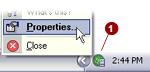
Right-mouse
click on the PlanetRemote icon  in the system tray
(bottom right corner of your screen) and select
Properties... in the system tray
(bottom right corner of your screen) and select
Properties...
Click on the VNC
 tab. tab.
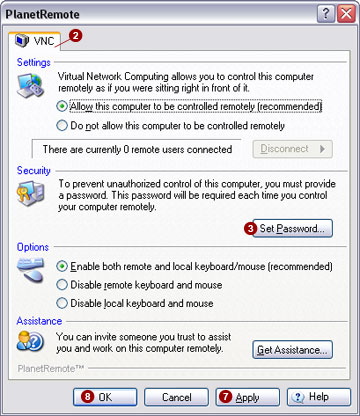
Click on the Set
Password  button. button.
The Set Password
dialog shown below will appear:
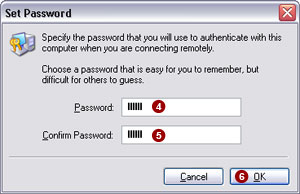
Enter your password in the
Password  field. The password you select must be
at least
five characters in length and should contain both letters and numbers. field. The password you select must be
at least
five characters in length and should contain both letters and numbers.
 NOTE: Choose a password that is easy for you to remember,
but difficult for others to guess. NOTE: Choose a password that is easy for you to remember,
but difficult for others to guess.
Type the same password again in the
Confirm Password field.
Press the OK
 button. button.
NOTE:
If the password
entered in the Confirm Password field does not match the
one entered in the Password field, the OK
button will not be accessible to select. You will have to re-enter the
password.
Press the Apply
 button to save your changes. button to save your changes.
Press the OK
 button in the VNC
tab to close the PlanetRemote Properties. button in the VNC
tab to close the PlanetRemote Properties.
|
|
