 |
Once logged in using PlanetRemote Viewer, you can access the
files by selecting the Files...
option.
To Access the Files on the Remote Computer
Login to the PlanetRemote-enabled
computer.
Right-mouse
click on the top bar of the Viewer window
 to open the properties menu. to open the properties menu.
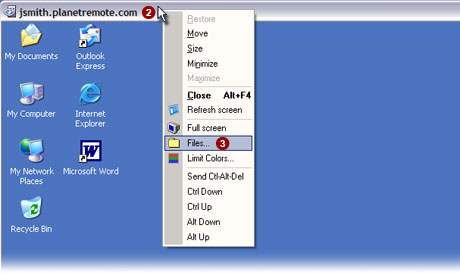
Select the Files...
 option from the menu. option from the menu.
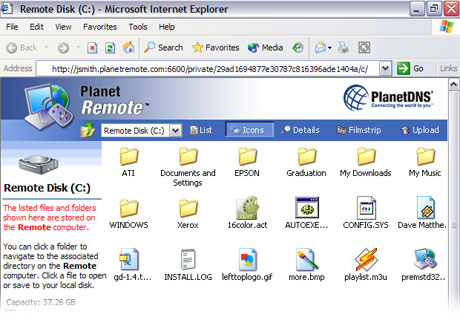
After you have pressed the
Files... button, a web browser window will be launched (shown below),
giving you access to the files and folders on the PlanetRemote-enabled
computer.
 NOTE:
The screen
below will not appear if PlanetRemote's file transfer function has not
been enabled. For further instructions, see
Enabling file
transfer. NOTE:
The screen
below will not appear if PlanetRemote's file transfer function has not
been enabled. For further instructions, see
Enabling file
transfer.
Related Topics
|
|

