PlanetRemote's file transfer function must be enabled before the
can access the
files over the Internet.
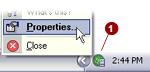
Right-mouse
click on the PlanetRemote icon  in the system tray
(along the bottom of your screen against the right corner) and select Properties...
in the system tray
(along the bottom of your screen against the right corner) and select Properties...
Click on the Files
 tab.
tab.
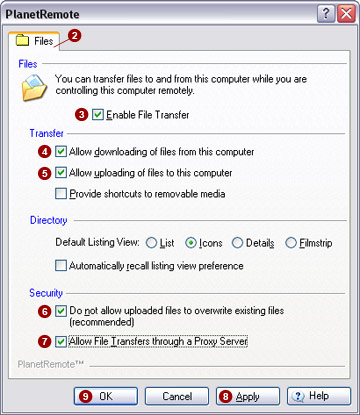
Click the Enable
File Transfer  option.
Click the Allow
downloading of files from this computer  option.
Click the Allow
uploading of files to this computer  option.
For added security, you can click the Do
not allow uploaded files to overwrite existing files (recommended)
 option.
Click the Allow
File Transfers through a Proxy Server  option.
Click the Apply
 button to save the changes.
Click the OK
 button to finish.


