|
Files on the
can be uploaded to the
computer once you have enabled the file transfer function.
 NOTE:
Access to the file transfer window (shown below) is determined by the
method you use to connect to the PlanetRemote-enabled computer. For instructions,
see Accessing files
using the web browser and Accessing
files using the PlanetRemote viewer. NOTE:
Access to the file transfer window (shown below) is determined by the
method you use to connect to the PlanetRemote-enabled computer. For instructions,
see Accessing files
using the web browser and Accessing
files using the PlanetRemote viewer.
To Upload a File to the PlanetRemote-enabled Computer
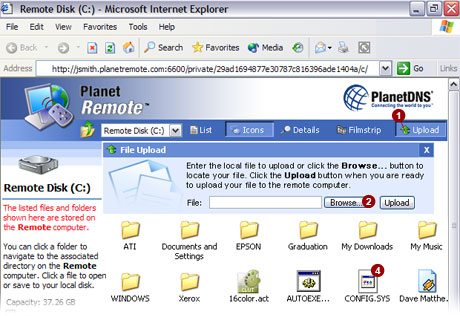
- To transfer a file from the local computer to the
PlanetRemote-enabled computer, select the top Upload
 button. button.
- Select the Browse...
 button to locate the directory on the local computer
that contains the file you want to upload to the PlanetRemote-enabled
computer. button to locate the directory on the local computer
that contains the file you want to upload to the PlanetRemote-enabled
computer.
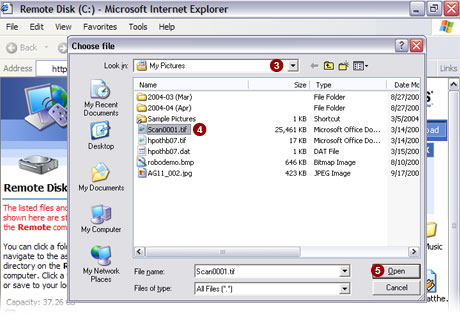
- Using the pulldown
 menu in the window
that appears (shown below), select the directory containing the file on
the local computer that you want to upload to the PlanetRemote-enabled
computer. menu in the window
that appears (shown below), select the directory containing the file on
the local computer that you want to upload to the PlanetRemote-enabled
computer.
- Click on the file you wish to upload
 . .
- Click the Open
 button. button.
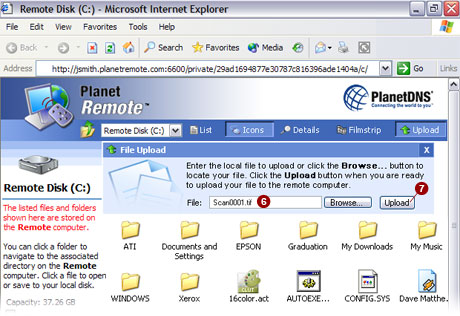
- The file you have selected to upload is now shown
in the File:
 field
(shown below). field
(shown below).
- Press the Upload
 button
to upload the file to the PlanetRemote-enabled computer. button
to upload the file to the PlanetRemote-enabled computer.
|

