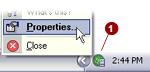
Right-mouse click
on the PlanetRemote icon  in the system tray (along the
bottom of your screen against the right corner) and select
Properties...
in the system tray (along the
bottom of your screen against the right corner) and select
Properties...
Click on the License
 tab.
tab.
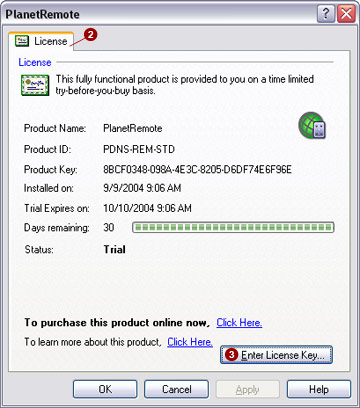
Press the Enter
License Key...  button.
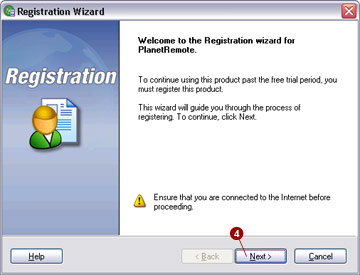
The Registration
Wizard dialog will appear (shown below). Select the
Next  button.
Customer Information.
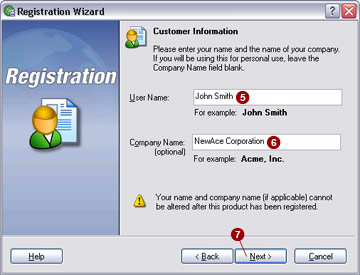
The information you will need to enter in the Registration
Wizard (e.g. shown below) must match exactly the license information
we e-mailed to you at the time of your purchase. Enter your name in the
User Name: field.
Enter your company name (if applicable) in the Company
Name:  field.
 NOTE:
The User Name and Company Name fields (shown below) are
case sensitive. Please ensure that you enter them exactly as shown in
the license information we e-mailed to you at the time of your purchase.
NOTE:
The User Name and Company Name fields (shown below) are
case sensitive. Please ensure that you enter them exactly as shown in
the license information we e-mailed to you at the time of your purchase.
License Key.
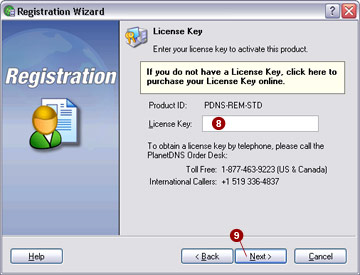
Enter the license key (unique combination of letters and numbers) we e-mailed
to you at the time of your purchase into the License
Key:  field.
NOTE:
If you have lost your license key, please click here
to have it e-mailed to you. If you do not have a license key, please click
here to purchase it online.
Click the Next
 button to continue.
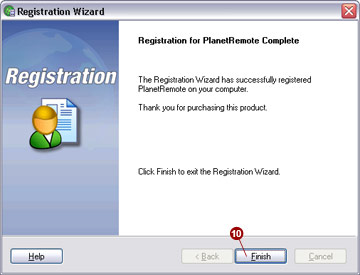
Click the Finish
 button.
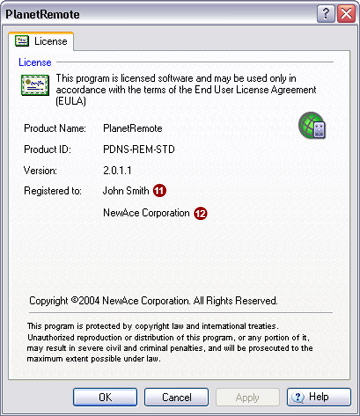
The license tab should now indicate Registered
to: and show your User Name
 and Company Name
(if applicable), as you entered them in Step 4 (above).
and Company Name
(if applicable), as you entered them in Step 4 (above).