 |
To install PlanetRemote on your computer for the first time, carefully
follow these instructions:
- Make sure your computer meets the system
requirements.
- Start your computer and establish a connection to
the Internet.
- Download the PlanetRemote software from the PlanetDNS
website at: http://www.planetdns.net/download/planetremote/
and, when prompted, save it to your desktop.
- Once the downloading process has been completed,
double-click on the PlanetRemote icon on your desktop.
- Installation will begin automatically.
Installer Dialogs
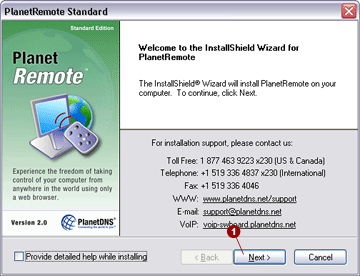
To continue, click the Next
 button. button.
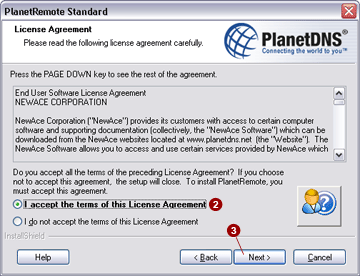
License Agreement.
In order to complete the installation and use PlanetRemote, you must accept
the license agreement. Select the I accept
the terms of this License Agreement  option. To continue,
click the Next option. To continue,
click the Next
 button. button.
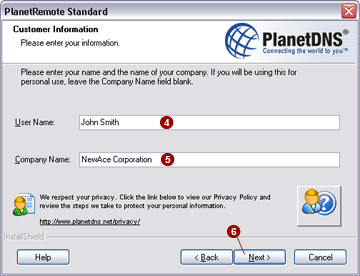
Customer Information.
Please enter your first and last name in the User
Name  field. Enter a company name in the Company
Name field. Enter a company name in the Company
Name  field. If application is for personal use,
or you do not have a company name, you may leave this field blank. To
continue, click the Next field. If application is for personal use,
or you do not have a company name, you may leave this field blank. To
continue, click the Next  button. button.
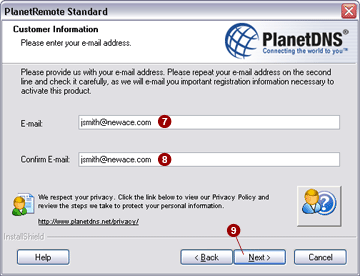
Enter your e-mail address into the
E-mail  field. Type in your e-mail address again
in the Confirm E-mail field. Type in your e-mail address again
in the Confirm E-mail  field. field.
NOTE: The
e-mail address you enter must be valid, as we use it to send you important
registration information.
To continue, click the Next  button. button.
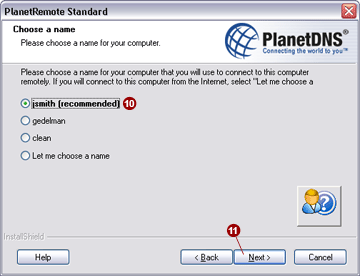
Choose a name.
Choose your Internet name (domain name) for your computer. If you're not
sure what name to use, select the first option (recommended)
 . By default, it will create an Internet name using
your first and last name. To continue, click the Next . By default, it will create an Internet name using
your first and last name. To continue, click the Next
 button. button.
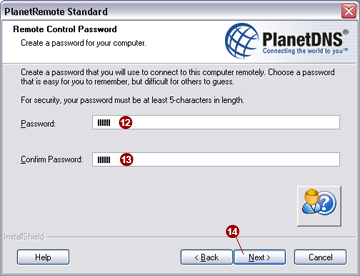
Remote Control
Password. Create a password to control remote access to your computer.
You will need to enter the password you select each time you want to control
your computer remotely. Enter the password into the
Password  field. Type in your password again in
the Confirm Password field. Type in your password again in
the Confirm Password  field. To continue, click the Next field. To continue, click the Next
 button. button.
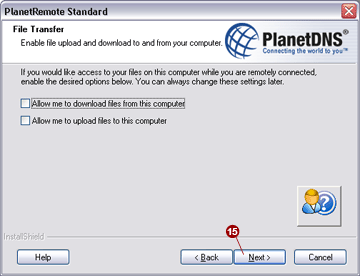
File Transfer.
You have the option of enabling PlanetRemote's file transfer (downloading
and uploading) features. To continue, click the Next
 button. button.
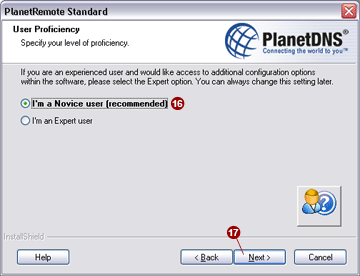
User Proficiency.
Select the I'm a Novice user (recommended)
 option, if you are installing PlanetRemote for the first
time. This setting can be changed at a later time, as you become more
familiar with the software. To continue, click the Next option, if you are installing PlanetRemote for the first
time. This setting can be changed at a later time, as you become more
familiar with the software. To continue, click the Next
 button. button.
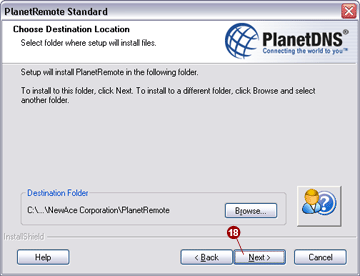
Choose Destination
Location. Select the folder where the automatic setup will install
the PlanetRemote program files. It is recommended that you leave the default
location and select the Next  button to continue. button to continue.
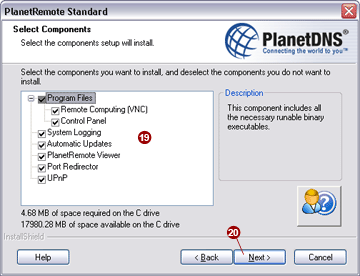
Select Components.
Choose the components that you want to install. By default, all the necessary
components are pre-selected  . To continue, click the Next . To continue, click the Next  button. button.
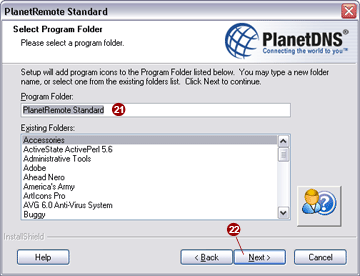
Select Program
Folder. Use the default setting, PlanetRemote Standard
 and click the Next and click the Next
 button to continue. button to continue.
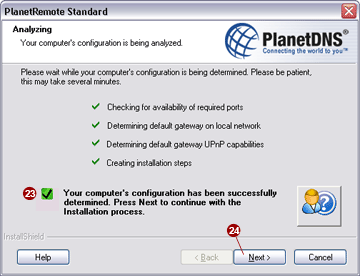
Analyzing.
Your computer is being configured to run PlanetRemote. Once the process
has been completed, a large, green check mark will appear  . To continue, click the Next . To continue, click the Next
 button. button.
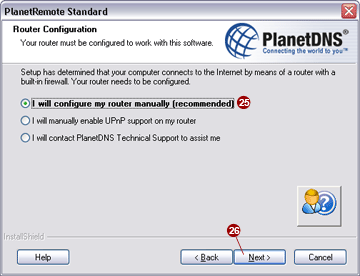
Router Configuration.
If setup detects that you connect to the Internet using a router, the
device must also be configured to work with PlanetRemote. Select I will configure my router manually (recommended)
 option. To continue, click the Next option. To continue, click the Next
 button. button.
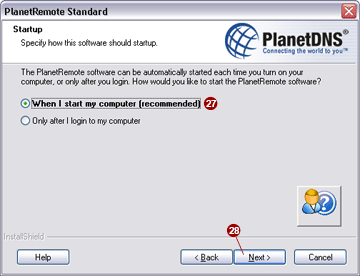
Startup.
Here you can select how the software should be started. Select When I start my
computer (recommended)  option, so PlanetRemote will
start without you first having to log into the computer. To continue,
click the Next option, so PlanetRemote will
start without you first having to log into the computer. To continue,
click the Next  button. button.
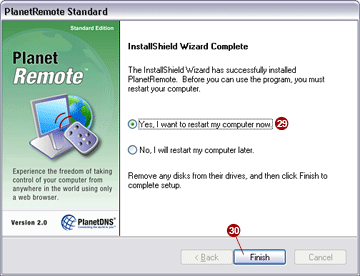
Congratulations, you have installed PlanetRemote!
Before you can use the program, you must restart your computer. Select
the Yes, I want to restart my computer
now  option. Then, click the Finish option. Then, click the Finish
 button. button.
|
|
