 |
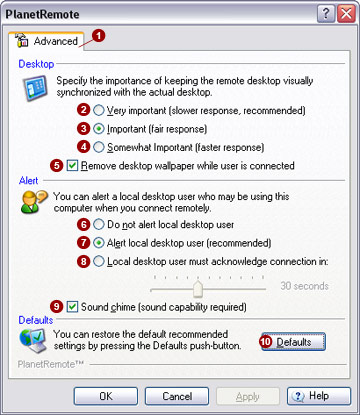
The Advanced  tab
allows you to set advanced settings, remote connection notification options
and to adjust the responsiveness of activities on the remote desktop. tab
allows you to set advanced settings, remote connection notification options
and to adjust the responsiveness of activities on the remote desktop.
Desktop
Specify the importance of keeping the
remote desktop visually synchronized with the actual desktop of the .
Very
important (slower response, recommended) 
Select this option to ensure that the Planetremote-enabled computer's
desktop is always synchronized with the actual desktop of the local computer.
Important
(fair response) 
Select this option to ensure that the visible window, as well as the
window that is under the mouse pointer on the local computer are accurately
presented on the PlanetRemote-enabled computer's desktop.
Somewhat
Important (faster response) 
Select this option to if you do not mind the occasional visual imperfection
when viewing the PlanetRemote-enabled computer's desktop.
Remove
desktop wallpaper while user is connected 
Check this option to further improve the performance between the local
computer and the PlanetRemote-enabled computer's desktop. This option
removes the desktop wallpaper (if any) on the PlanetRemote-enabled computer,
while one or more remote users are connected. The wallpaper is automatically
restored when the last user disconnects.
Alert
You can alert a local computer user when you
connect remotely.
Do
not alert local desktop user
With this option selected, no visual indication will appear on the
PlanetRemote-enabled computer when a remote control connection is established.
The PlanetRemote icon in the system tray will not change color and remain
green during entire remote control connection.This option is not recommended,
unless it is required under provisions of your company's audit policy.
Alert
local desktop user (recommended) 
Select this option to trigger a visual indicator on the PlanetRemote-enabled
computer when someone from a remote location has connected. The PlanetRemote
icon in the system tray (bottom right corner of your screen) turns orange
 . Depending on the software version, a balloon notification
will also appear to indicate that a remote connection is active. . Depending on the software version, a balloon notification
will also appear to indicate that a remote connection is active.
Local
desktop user must acknowledge connection in 
Select this option to allow the local computer user on the PlanetRemote-enabled
computer whether or not to permit the remote connection before it can
be established completely. The
local computer user will be prompted with a dialog that identifies the
address of the connecting party and requests permission to complete the
remote connection. To allow the remote connection, the local user must
click the Yes button within 30
seconds of the notification dialog appearing. If the local user selects
the No button, or does respond
to the request, remote access to the computer will be denied.
Sound
chime (sound capability required) 
Check this option to sound a chime on the PlanetRemote-enabled computer
when a remote control connection has been successfully established.
Defaults
Restore the recommended default settings by
pressing the Defaults  button. button.
Related
Topics
|
|

