 |
|
 |
| |||
|
| |
|
|
|
| |||
|
| |
|
The Hosts  tab allows
you to restrict one or more computers or entire networks from establishing
remote control connections to your computer. tab allows
you to restrict one or more computers or entire networks from establishing
remote control connections to your computer.
Access Policy The access policy defines whether a select number or all computers are permitted to establish remote connections to this computer.
Policy Exceptions You can create exceptions to the Access Policy you have selected by specifying the IP address of the computer or networks. To specify a network, list zero as the last digit of the IP address. For example, 192.168.1.0 represents network 192.168.1.0/24 and 192.168.0.0 represents network 192.168.0.0/16.
To add an exception, click the Add
|
|
|
Copyright © 2004 PlanetDNS. All Rights Reserved. |
|
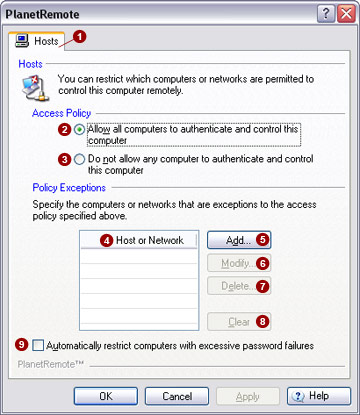

 option. This added security option permanently refuses remote
access to any user who has failed to enter the correct password after
seven consecutive attempts.
option. This added security option permanently refuses remote
access to any user who has failed to enter the correct password after
seven consecutive attempts. 
 of your computer
(or router), or the IP address block of your Internet service provider
on the
of your computer
(or router), or the IP address block of your Internet service provider
on the  button and enter the IP address of the local computer
or network. Click the
button and enter the IP address of the local computer
or network. Click the  button to modify an existing entry that you have highlighted
from the list. To delete an entry, highlight it and click the
button to modify an existing entry that you have highlighted
from the list. To delete an entry, highlight it and click the 
 button. You will be asked to confirm your decision to delete
all computer IP addresses or networks listed.
button. You will be asked to confirm your decision to delete
all computer IP addresses or networks listed.