|
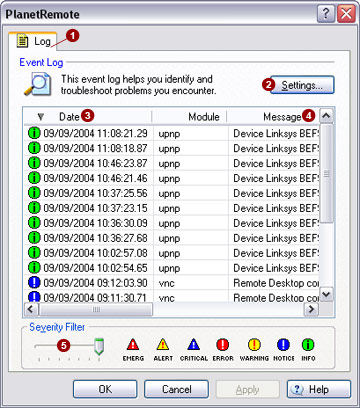
The Log  tab provides
for a system logging service, which provides a status report of other
module extensions. tab provides
for a system logging service, which provides a status report of other
module extensions.
Messages
Messages are logged in reverse chronological
order, with the most recent message listed first. The log also documents
the date the messages was generated, the name of the module that generated
the message (i.e., mshweb, etc.,) and its status. The severity of the
message is indicated by one of the following icons:
|

|
Emergency
The system is unusable. The emergency message is reported by the module
manager, when it can no longer communicate with some, or all of the installed
modules that it manages. A program (possibly a system) restart is required.
|
|

|
Alert
An alert message indicates an alert condition that requires immediate attention.
|
|

|
Critical
A critical message indicates a serious condition. For example, the module
is unable to allocate necessary memory or disk space to perform correctly.
|
|

|
Error
An error message indicates that an unexpected condition has been encountered.
For example, instructional data were unavailable when the indicated module
communicated with a server, or a required system file was not found.
|
|

|
Warning
The warning message indicates a temporary failure that prevents the current
operation from being completed. Take steps to remedy the problem, then
retry the operation again.
|
|

|
Notice
A notice message indicates a temporary failure. For example, a module was
communicating with the Internet when the connection to the Internet was
terminated. Retry the operation again.
|
|

|
Information
An information message is for the user's information only. No action is
necessary.
|
Severity Filter
Determine the types of messages that you want
displayed, by changing the Severity Filter
 slide control. When the control is set to the far right,
all message types will be displayed. When the control is set to the far
left, only emergency level messages will be displayed. slide control. When the control is set to the far right,
all message types will be displayed. When the control is set to the far
left, only emergency level messages will be displayed.
Clearing Log Entries
You can clear the message
log by clicking the right-mouse button, while the pointer is positioned
over the log messages window. A pop-up menu will be displayed. Select
the Clear... option. Then, select
Yes to confirm that you want to
clear all log entries.
After making changes,
select the Apply  button. button.
Changing Logging Options
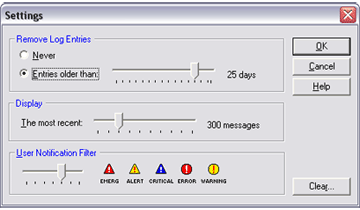
Display Control
the number of messages, starting with the most recent, that will appear
on the log. Use the slide to adjust (up to 300) the number of messages
to be retained on the log. Messages numbering above your selected limit
will be deleted automatically.
|
|

 button. The following dialog will appear: