|
Connecting to other stations running PlanetRemote on your local area
network (LAN) is made easy with PlanetRemote Viewer's Station Locator™ service.
This allows you to easily maintain a listing of available stations on
your LAN that you can take control of remotely.
Controlling remote stations over LAN
Make sure you have PlanetRemove Viewer installed
on the computer you are using to take control of the remote stations on
your network.
Click on the PlanetRemote
viewer icon  on your desktop to start the application. on your desktop to start the application.

Select the Connect
 tab if not already selected. tab if not already selected.
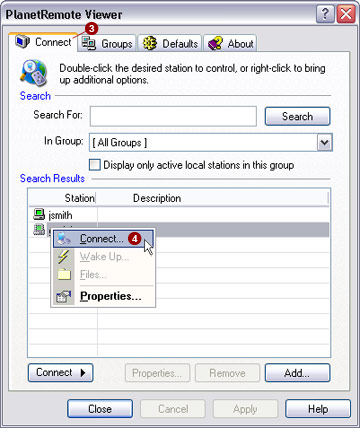
Select the station you want to connect to by right-mouse clicking on the station
name and selecting the Connect...
 option from the menu. option from the menu.
Enter the password of the station you want to
remote control in the Password:
 field. field.
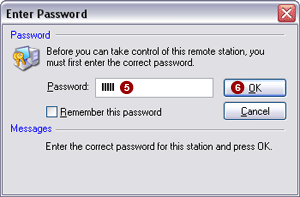
Press the OK
 button to connect to the remote station. button to connect to the remote station.
After you have pressed the OK
button, it will take a couple of seconds for the remote desktop to initialize.
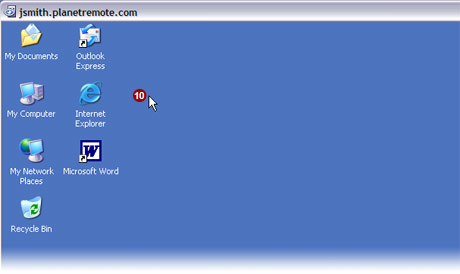
Once initialized, you will have access to the remote
computer's desktop  and your mouse and keyboard have
transferred over to the remote computer and your mouse and keyboard have
transferred over to the remote computer
|
|