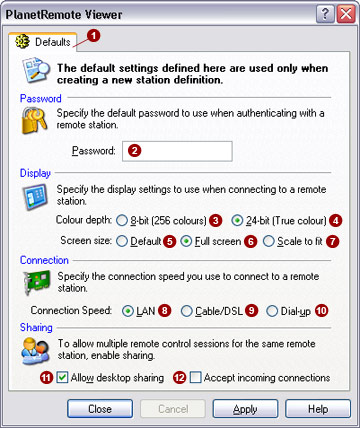
The Defaults tab specifies the settings to be used for a new station that has been added to the list.


Password

Specify the default password required to authenticate a connection to a PlanetRemote-enabled station.


  • Password:
    Enter the default password to be used when new stations are added automatically. Selecting this option allows you to gain remote access to the station without having to enter a password each time. The option to apply a default password is particularly convenient for managers of LANs with a large number of stations. Alternatively, to enhance network security, you can leave the field blank, which requires users to manually provide the password each time they want to gain remote access to a network station.


Display

Specify the display settings to use when connecting to a PlanetRemote-enabled station.


  • Color depth:

    8-bit (256 colours)

    Select this option to represent the PlanetRemote-enabled computer desktop using 256 colors (8-bit). This setting will reduce the quality of the image represented on your Local computer screen, but will improve the responsiveness of your remote control actions.

    24-bit (True colour)

    Select this option to represent the remote desktop using all available colors (true color).
     

  • Screen size:

    Default

    Select this option to view the PlanetRemote-enabled computer desktop image in a separate window. This is the recommended option.

    Full screen

    Select this option to maximize the area of your screen used to present the image of the PlanetRemote-enabled computer desktop. If the screen resolution of the PlanetRemote-enabled station is higher than that of your Local computer, you will see a portion of the desktop image, but will be able to scroll around the entire area.

    Scale to fit

    Select this option to scale the PlanetRemote-enabled desktop image to fit in the desktop of your Local computer. If your task bar does not automatically hide, or you have application quick-launch bars, etc., the usable area of the screen will be reduced. As a result, the window showing the PlanetRemote-enabled computer desktop will be also reduced in size.

Connection Speed

Specify the type of connection being used to access a PlanetRemote-enabled station. The setting will determine your connection speed. The connection speed is the rate at which data is sent between the Local and PlanetRemote-enabled computers, affecting the responsiveness of your desktop actions.


  • LAN
    Select this option if you primarily want to control PlanetRemote-enabled stations on your local area network.


    Cable/DSL
    Select this option if the majority of remote stations are using a cable or DSL connection, or you connect to the Internet using a cable or DSL connection.


    Dial-up
    Select this option if the majority of remote stations are using dial-up connections, or you connect to the Internet using a dial-up modem.

Sharing

Allow multiple remote connections to the same PlanetRemote-enabled station simultaneously.


  • Allow desktop sharing
    Select this option to allow other stations to control a PlanetRemote-enabled station simultaneously.

 NOTE:  The PlanetRemote-enabled station that you are connecting to must have the same Sharing option enabled..
 

  • Accept incoming connections
    Select this option if you are using PlanetRemote Viewer as a resource for your own support center. The support center feature is activated on TCP Port 5500.